
Last updated: January 17, 2023
Applies to:
-
 Marketing Hub
Professional, Enterprise
Marketing Hub
Professional, Enterprise
-
 Sales Hub
Professional, Enterprise
Sales Hub
Professional, Enterprise
-
 Service Hub
Professional, Enterprise
Service Hub
Professional, Enterprise
-
 Operations Hub
Professional, Enterprise
Operations Hub
Professional, Enterprise
When you reference a workflow in another HubSpot asset, such as a list or another workflow, you can view those connections from the workflows dashboard and the workflow review page. You can also view any assets that the workflow uses, such as lists and properties.
View workflow connections from the dashboard
To view a workflow's connections from the dashboard:
- In your HubSpot account, navigate to Automation > Workflows.
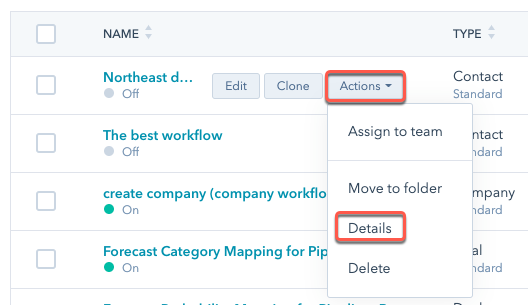
- Hover over a workflow, then click Actions and select Details.
- In the right panel, click the Connections tab.
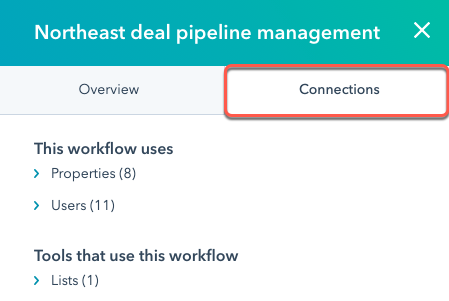
- View the assets that the workflow is using along with tools that are using the workflow.
Review connections before turning on a workflow
Before turning on a workflow, you can review which assets the workflow is using and which other assets are using the workflow.
- While in the workflow builder, click Review to review workflow details.

- On the review page, under Connections, review the workflow's connections.
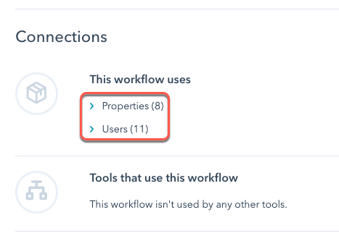
- To view which specific assets are connected to the workflow, click the asset type. You can then click the asset name to view that asset.