Last updated: January 17, 2023
Applies to:
-
 Marketing Hub
Professional, Enterprise
Marketing Hub
Professional, Enterprise
-
 Sales Hub
Professional, Enterprise
Sales Hub
Professional, Enterprise
-
 Service Hub
Professional, Enterprise
Service Hub
Professional, Enterprise
-
 Operations Hub
Professional, Enterprise
Operations Hub
Professional, Enterprise
You can connect branches with the Go to other action action to streamline your workflow building process, especially for workflows with multiple if/then branches.
To set up a Go to other action action:
- In your HubSpot account, navigate to Automation > Workflows.
- Click the name of an existing workflow, or create a new workflow by clicking Create workflow.
- Within an if/then branch, click the + plus icon.

- In the right panel, select Go to other action.
- Select another action in the workflow to connect to. You can only select actions in other branches. This prevents workflow loops. Actions that are not available for selection will be greyed out.
- In the Save this connection? dialog box, click Done to connect the actions.
- A dashed arrow will appear showing the connected actions. Now when a record gets to the Go to other action step, they will be sent to the connected action.
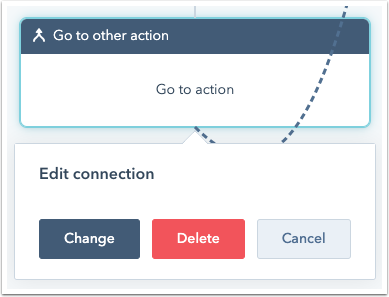
- To edit a connection, click the Go to other action action:
- To change where records will be sent, click Change.
- To delete the connection, click Delete.
- To keep the connection where it is, click Cancel.