
Last updated: January 17, 2023
Applies to:
-
 Marketing Hub
Professional, Enterprise
Marketing Hub
Professional, Enterprise
If you want to reuse or iterate on the design of an email that you created using the drag and drop editor, you can save it as a template for future emails.
Please note: you can only save regular marketing emails as templates. For blog and RSS emails, you can clone the email instead.
To save an email as a template:
- In your HubSpot account, navigate to Marketing > Email.
- Choose an email that you want to save as a template:
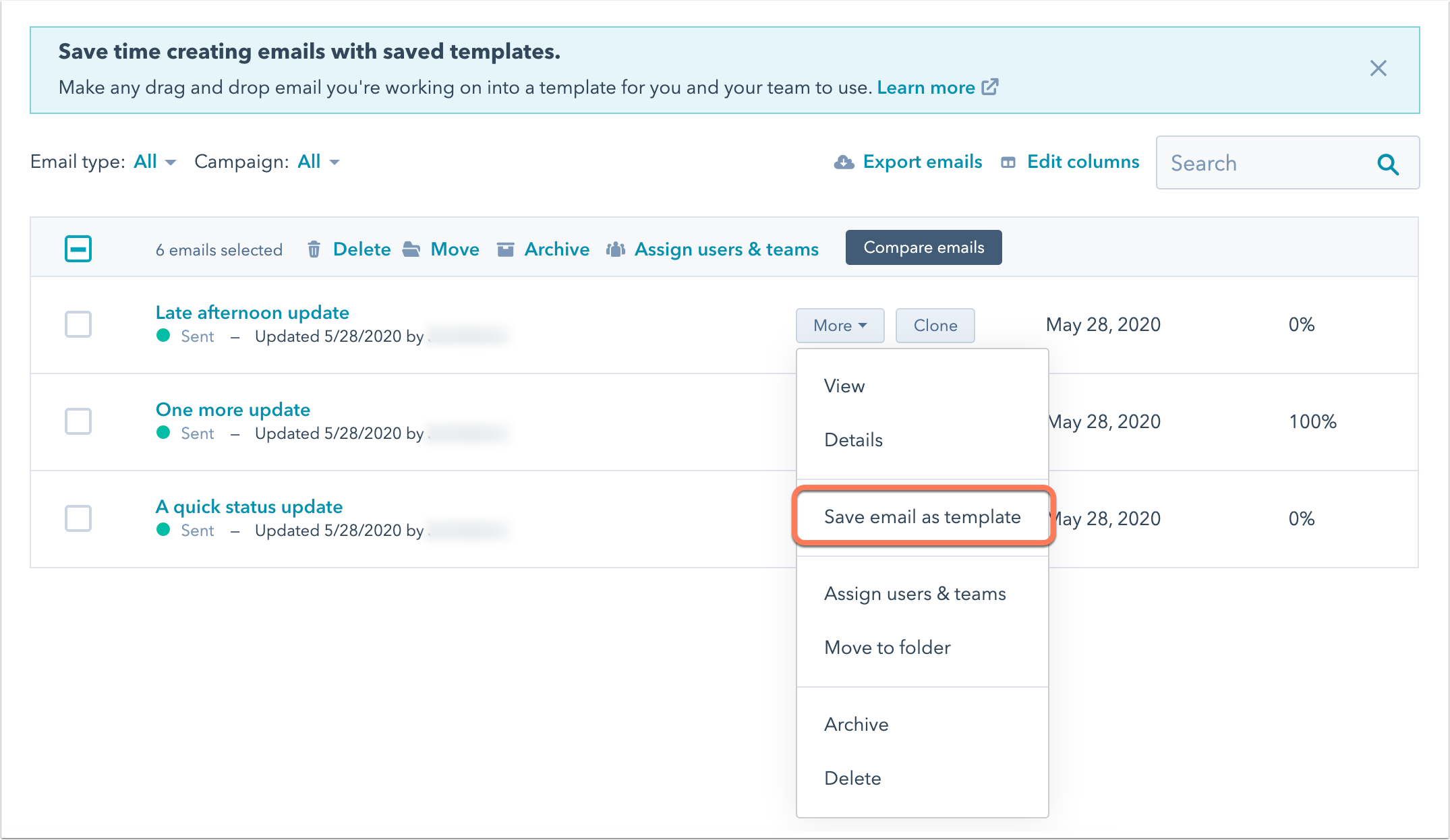
- If you have an existing draft or published email that you want to save as a template, hover over the email. Click Actions, then select Save email as template.
Please note: only users with the Design tools access can save an email as a template.
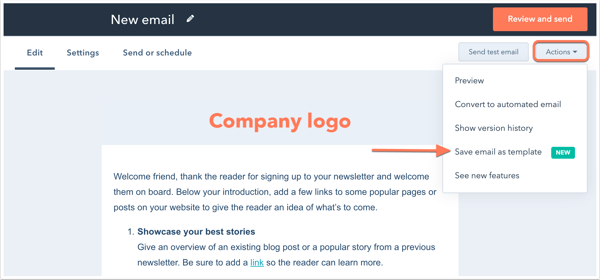
- If you want to create and save a new email as a template, click Create email. Select Regular, then select a template. After you've finished editing your email, click the Actions dropdown menu in the top right, then select Save email as template.
- In the dialog box, enter a template name.
- Click Save.
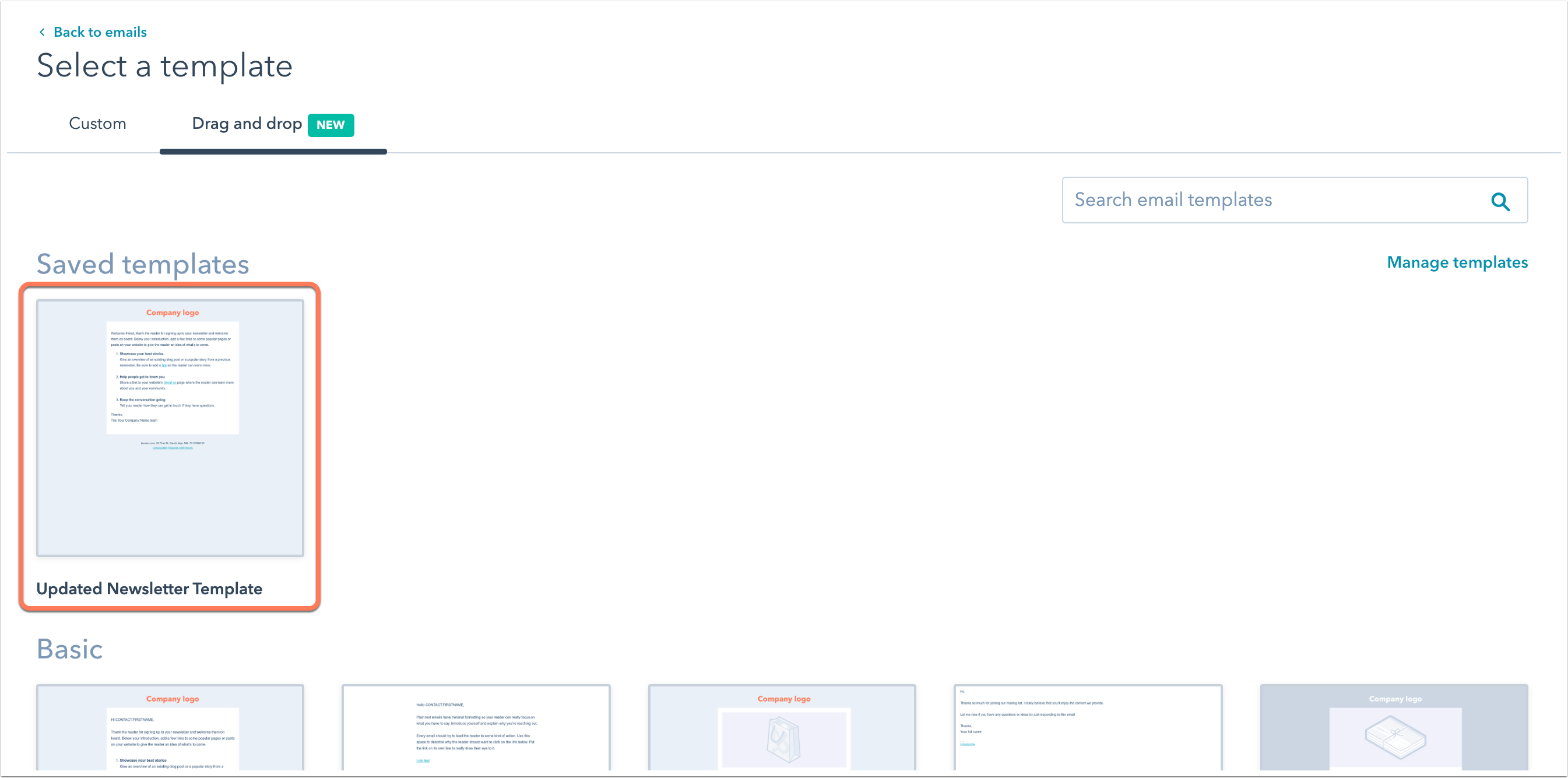
Once you've saved an email as a template, it will be available for you to select when creating a new email under the Saved templates section.
When using a saved email template, you'll still need to configure any smart rules, along with any other settings or recipients that you want to include for the new email.