
Last updated: November 4, 2022
Applies to:
-
 Marketing Hub
Professional, Enterprise
Marketing Hub
Professional, Enterprise
- Legacy Marketing Hub Basic
When you're designing an HTML template to use in the classic email editor, you can style your email by including CSS in the head section of your email.
Learn more about styling your template in the inspector.
Please note: this method requires a basic understanding of HTML. Custom HTML is not supported in the drag and drop email editor.
- In your HubSpot account, navigate to Marketing > Files and Templates > Design Tools.
- Find and click on the name the email template you wish to modify.
- Click the Edit dropdown menu at the top and select Edit head.
- Add the
data-hse-inline-csstag into the head section. You can learn more about what CSS is supported across email clients here.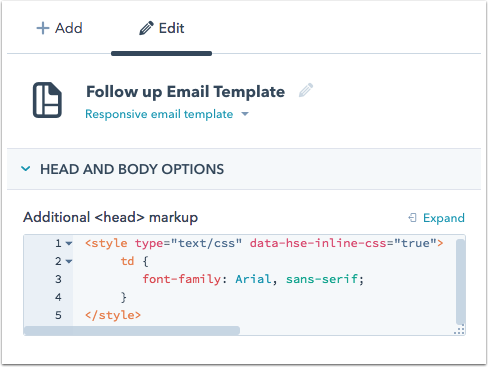
The code will look something like this, with your own styling added within this tag:
<style type="text/css" data-hse-inline-css="true">
      td {
         font-family: Arial, sans-serif;
      }
</style>
- Click Publish changes to take your changes live.