
Last updated: January 17, 2023
Applies to:
-
 Service Hub
Professional, Enterprise
Service Hub
Professional, Enterprise
Add a form to your knowledge base so visitors can submit the form when they can't find their answers in your articles. These form submissions will create tickets that will appear in your tickets index page and in your conversations inbox so your team can respond directly to the submission.
Please note: you can only add forms that have been connected to the conversations inbox to your knowledge base template.
You can add the form to the knowledge base template.
- In your HubSpot account, navigate to Service > Knowledge Base.
- In the upper right, click Customize template.
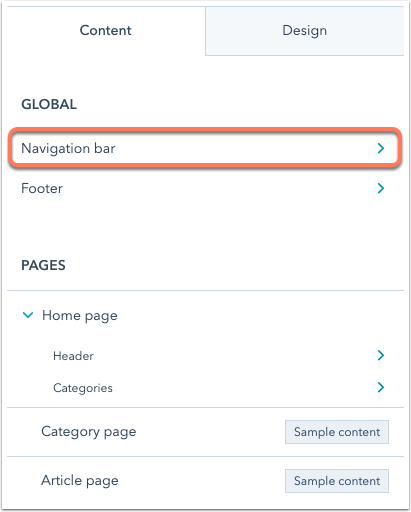
- On the Content tab, click Navigation bar.
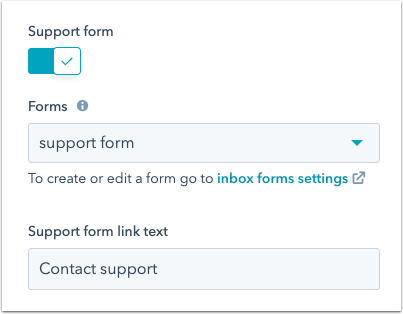
- Click to toggle the Support form switch on.
- Click the Forms dropdown menu to select a form.
- To edit the link text for your support form, enter text into the Support form link text field.
- To publish the changes, click Update template in the upper right. Then, click OK, publish.
Visitors can now access your support form by clicking the link in the top right of your knowledge base. To send submissions to your conversations inbox, learn how to connect a form to the inbox.