Last updated: January 17, 2023
Applies to:
-
 Marketing Hub
Starter, Professional, Enterprise
Marketing Hub
Starter, Professional, Enterprise
-
 Sales Hub
Starter, Professional, Enterprise
Sales Hub
Starter, Professional, Enterprise
-
 Service Hub
Starter, Professional, Enterprise
Service Hub
Starter, Professional, Enterprise
-
 CMS Hub
Starter, Professional, Enterprise
CMS Hub
Starter, Professional, Enterprise
In your conversations inbox availability management settings, view your team's live chat availability status and which inboxes they have access to in your account. Users with Availability Management permissions can override an individual user's chat availability status.
To add or remove users from an inbox, navigate to your inbox settings.
- In your HubSpot account, click the settings icon in the main navigation bar.
- In the left sidebar, navigate to Inbox > Availability Management.
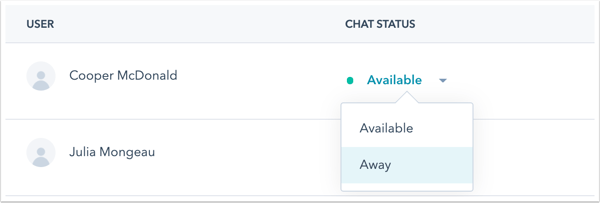
- There will be a table with a list of users who have access to your inboxes. Use the filters at the top of the table to segment your team by user, status, or inbox.

- To change a team member's status to offline, click the dropdown menu next to their name and select Away.
Please note: if you're a free user, you can view your other team members' status, but can't make changes to another user's status.
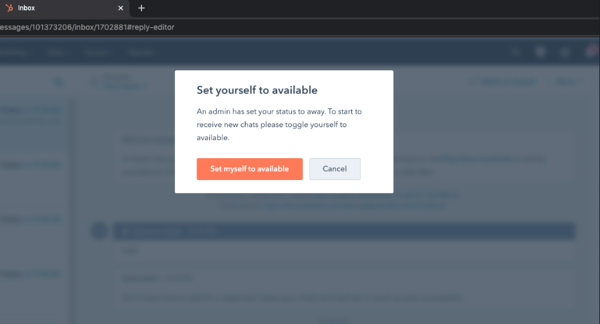
If a user with Availability Management permissions sets your status to Away, you'll see an alert when you navigate to the inbox. To change your status, in the dialog box, click Set myself to available.