
Last updated: November 4, 2022
Applies to:
-
 Marketing Hub
Professional, Enterprise
Marketing Hub
Professional, Enterprise
-
 CMS Hub
Professional, Enterprise
CMS Hub
Professional, Enterprise
- Legacy Marketing Hub Basic
To clone a template in your design manager tool:
- In your HubSpot account, navigate to Marketing > Files and Templates > Design Tools.
- Click the name of a template to open it in the layout editor. If you don't see the finder with your list of templates and coded files, click the folder icon at the upper-left corner of the layout editor to open the finder.
- Right-click the name of the template, then click Clone template, or click File and select Clone "template name".
- A clone of the template will be created with the name [Template name] copy, and the cloned template will automatically open in the layout editor.
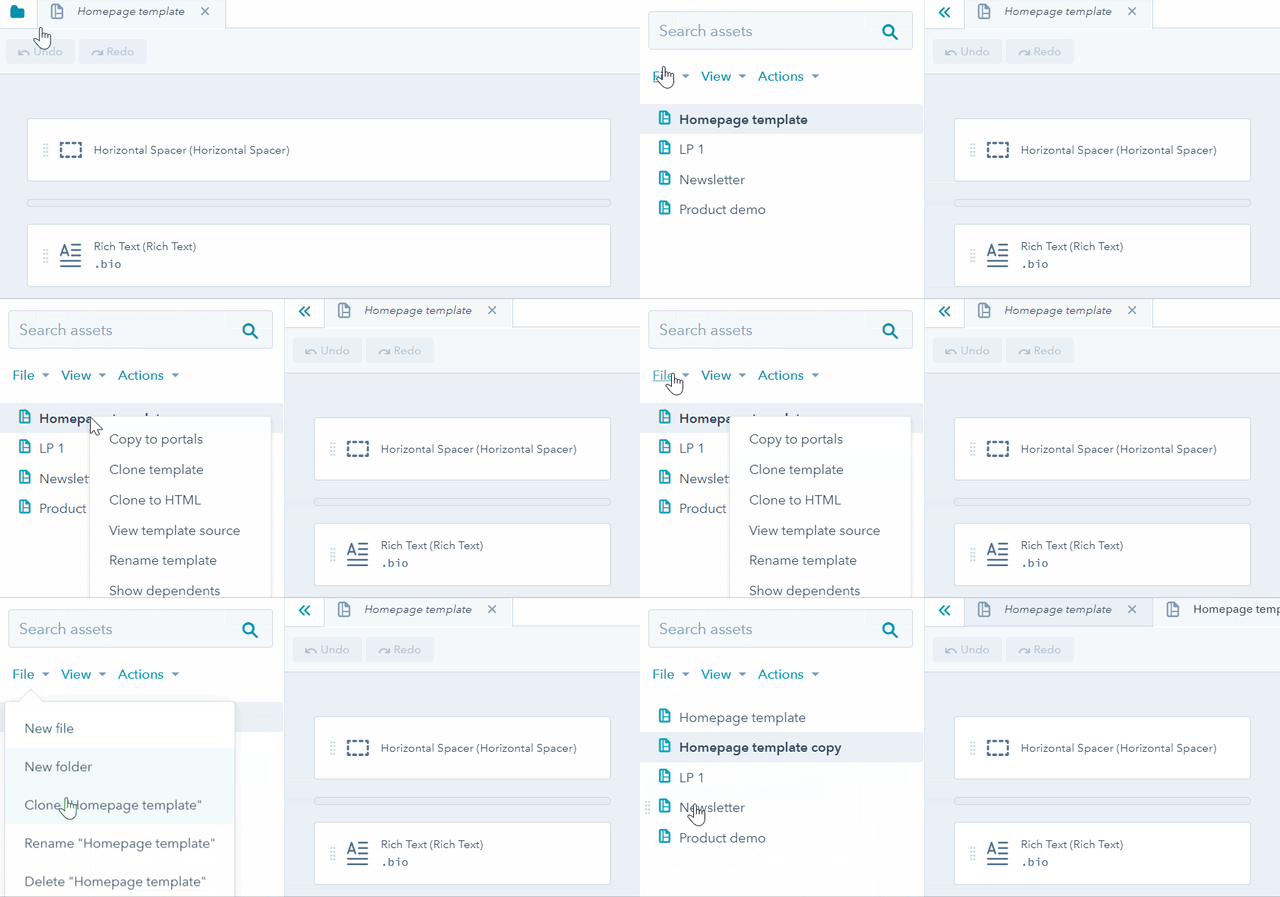
Please note: you can also choose Clone to HTML if you wish to access or clone the template in a raw HTML format. This option is geared towards code-savvy users or designers who prefer to edit templates via HTML. When you choose to clone a template to HTML, the cloned template will not provide the ability to drag and drop modules in the template.