Last updated: November 4, 2022
Applies to:
-
 Marketing Hub
Professional, Enterprise
Marketing Hub
Professional, Enterprise
-
 CMS Hub
Professional, Enterprise
CMS Hub
Professional, Enterprise
- Legacy Marketing Hub Basic
In most cases, changes to a template's content will only be applied to new blog posts, pages, or emails created with the template going forward. This ensures that you don't lose any of the work you've done to create your existing content.
If you're editing a locked module or a global module, any existing blog post, page, or email currently using this template will be updated with your changes. This is because the content for these types of modules can only be edited in the design manager.
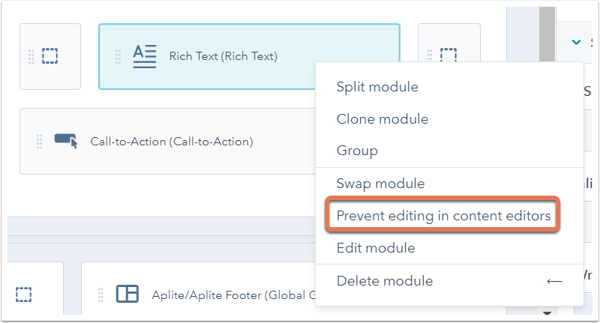
If you want your changes to the module on the template level to populate across your existing content, you can lock the module on the template:- Right-click the module in the layout editor, then select Prevent editing in content editors. A strikethrough pencil icon will appear on the right of a module once it has been locked.
Please note: if you've edited a locked module on your template and it's not updating your existing check, check to confirm you've clicked Publish changes to take you changes live.