
Last updated: November 4, 2022
Applies to:
-
 Sales Hub
Professional, Enterprise
Sales Hub
Professional, Enterprise
If your account has a Sales Hub Starter, Professional or Enterprise account, you can use multiple deal pipelines to align with your sales process. You can move an individual deal from one pipeline to another, or move multiple deals at once to a different pipeline.
Move a single deal to another pipeline
- In your HubSpot account, navigate to Sales > Deals.
- Click the name of the deal you want to edit.
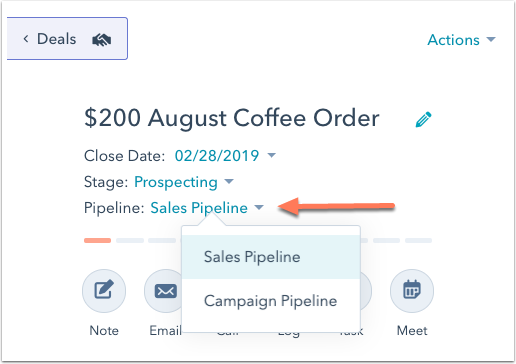
- At the top left, click the Pipeline dropdown menu and select a pipeline.
- In the dialog box, click the Stage dropdown menu and select a deal stage.
- Click Save.
Move multiple deals to another pipeline
If you want to move multiple deals to a different pipeline in bulk:
- In your HubSpot account, navigate to Sales > Deals.
- In table view, select the checkboxes next to the deals whose pipeline you want to edit.
Please note: you cannot edit the pipeline for multiple deals in board view. To edit the pipeline or stage in bulk, switch to table view.
- At the top of the table, click Edit.
- In the dialog box, click the Property to update dropdown menu and select Pipeline.
- Click the dropdown menu and select the deal stage and pipeline you want to move the deals to (e.g., Appointment scheduled (Sales Pipeline)).
- Click Update.